1Getting Started
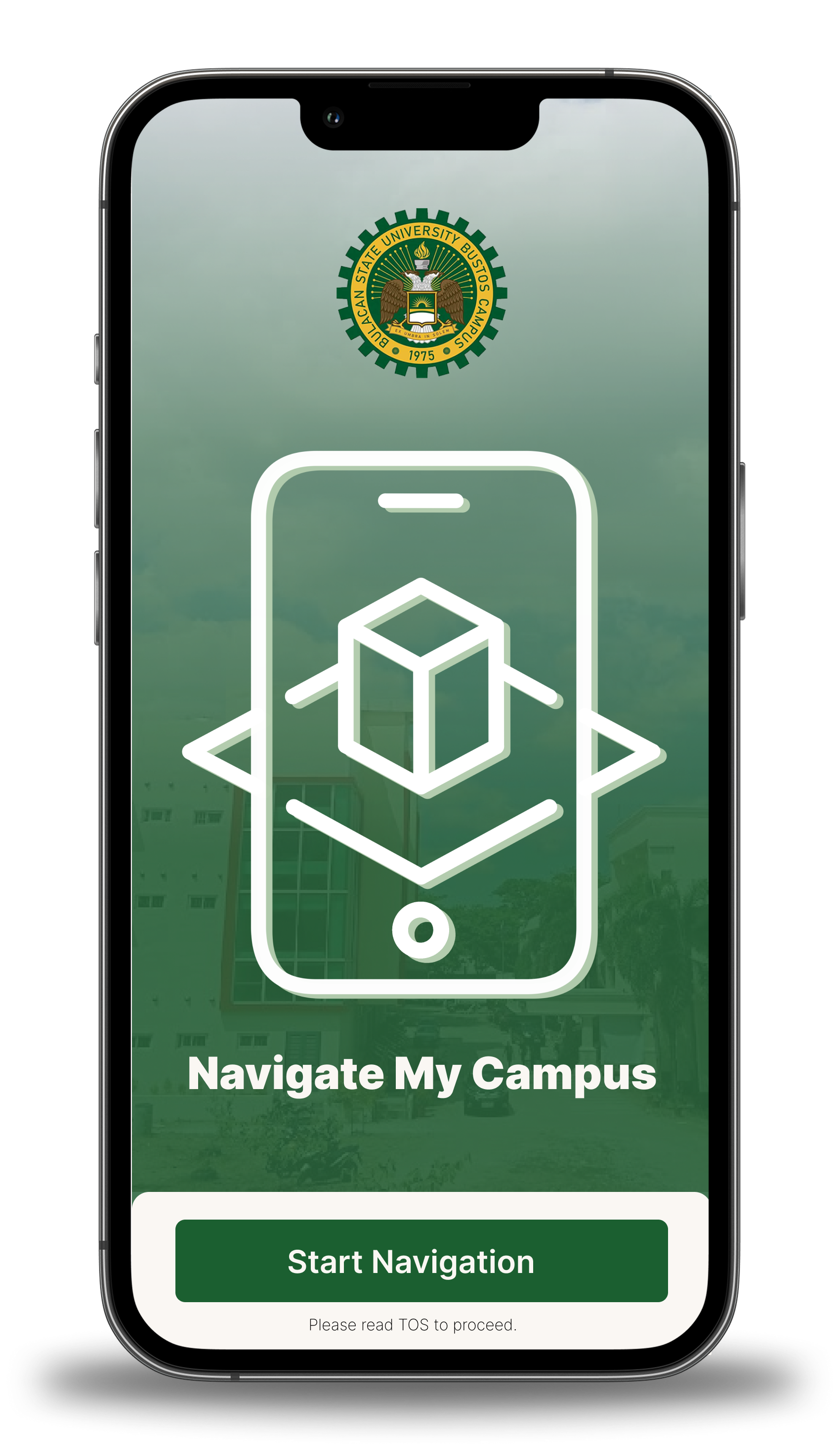
Welcome to AR Navigation! To begin your navigation experience, locate and click the "Start Navigation" button on the landing page. This will initiate your journey through our AR-enabled navigation system.
2Terms of Service - Part 1
.png)
First, you'll see the main Terms of Service page. Take a moment to review the initial terms and conditions before proceeding to the next section.
3Terms of Service - Part 2
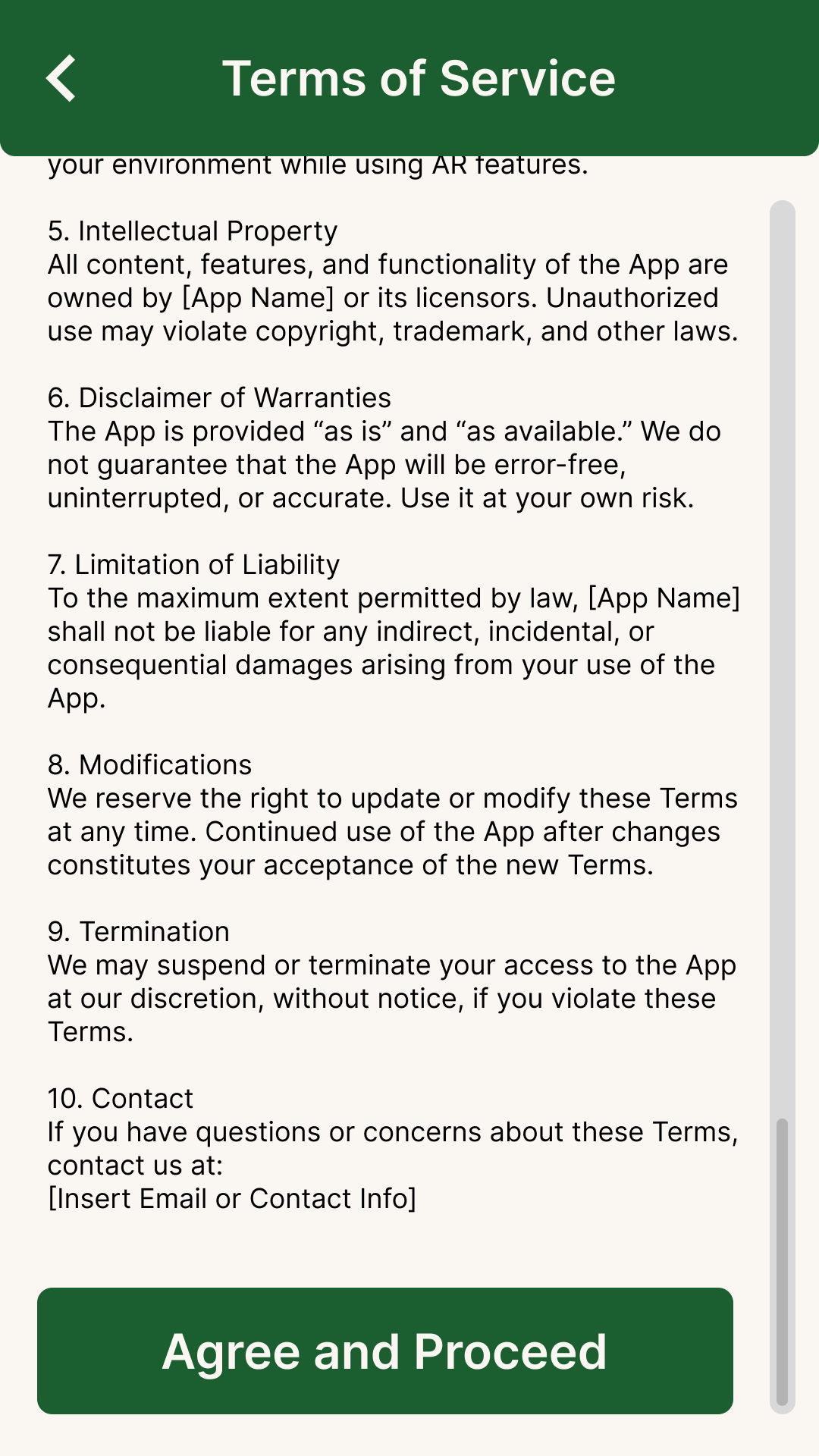
Review the final section of our Terms of Service. Scroll through the document carefully and accept the terms by clicking the button at the bottom. This ensures you understand how to use the application responsibly.
4Grant Permissions

The app requires access to your camera for AR functionality. When prompted, please grant the necessary permissions to enable all features of the application.
5Main Navigation Interface
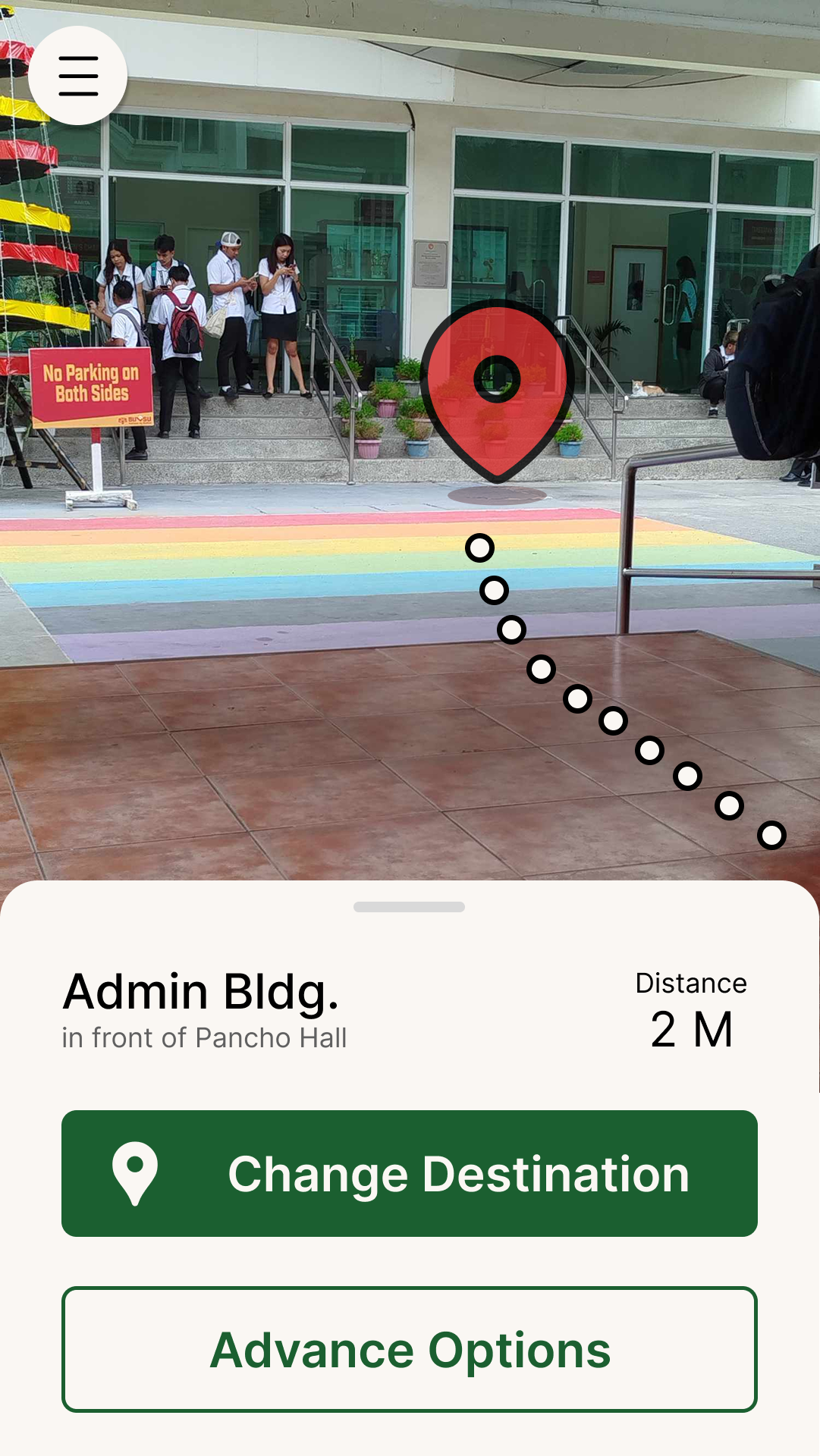
This is the main interface of the AR Navigation app. Here you'll find two primary options:
- Select Destination: Click this button to choose where you want to go
- Advanced Options: Access additional features and settings
6Selecting Your Destination
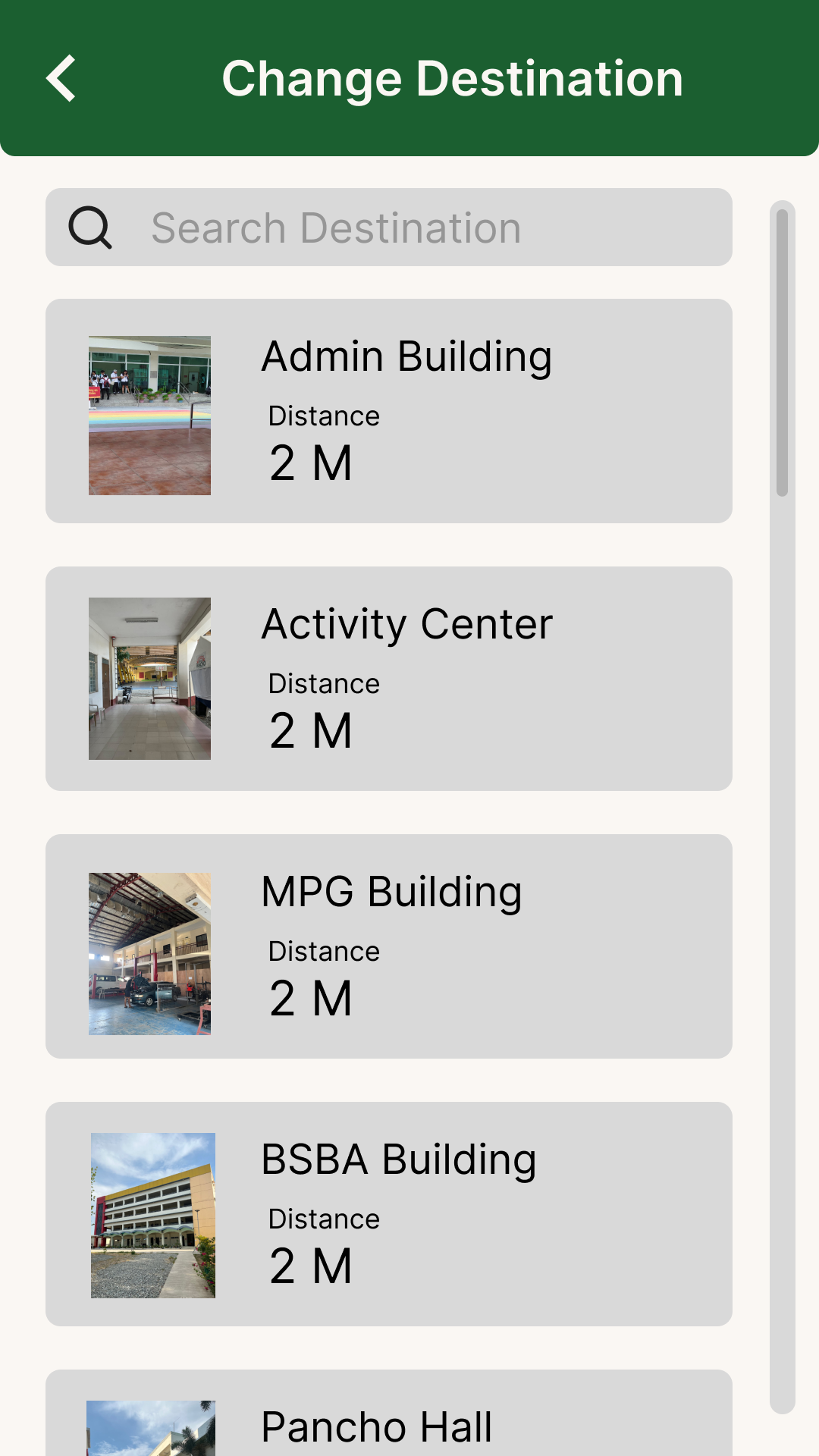
When you click "Select Destination," you'll be presented with this screen. Here you can choose your desired location from the available options. After selecting, you can return to the main screen to begin navigation.
7Advanced Options
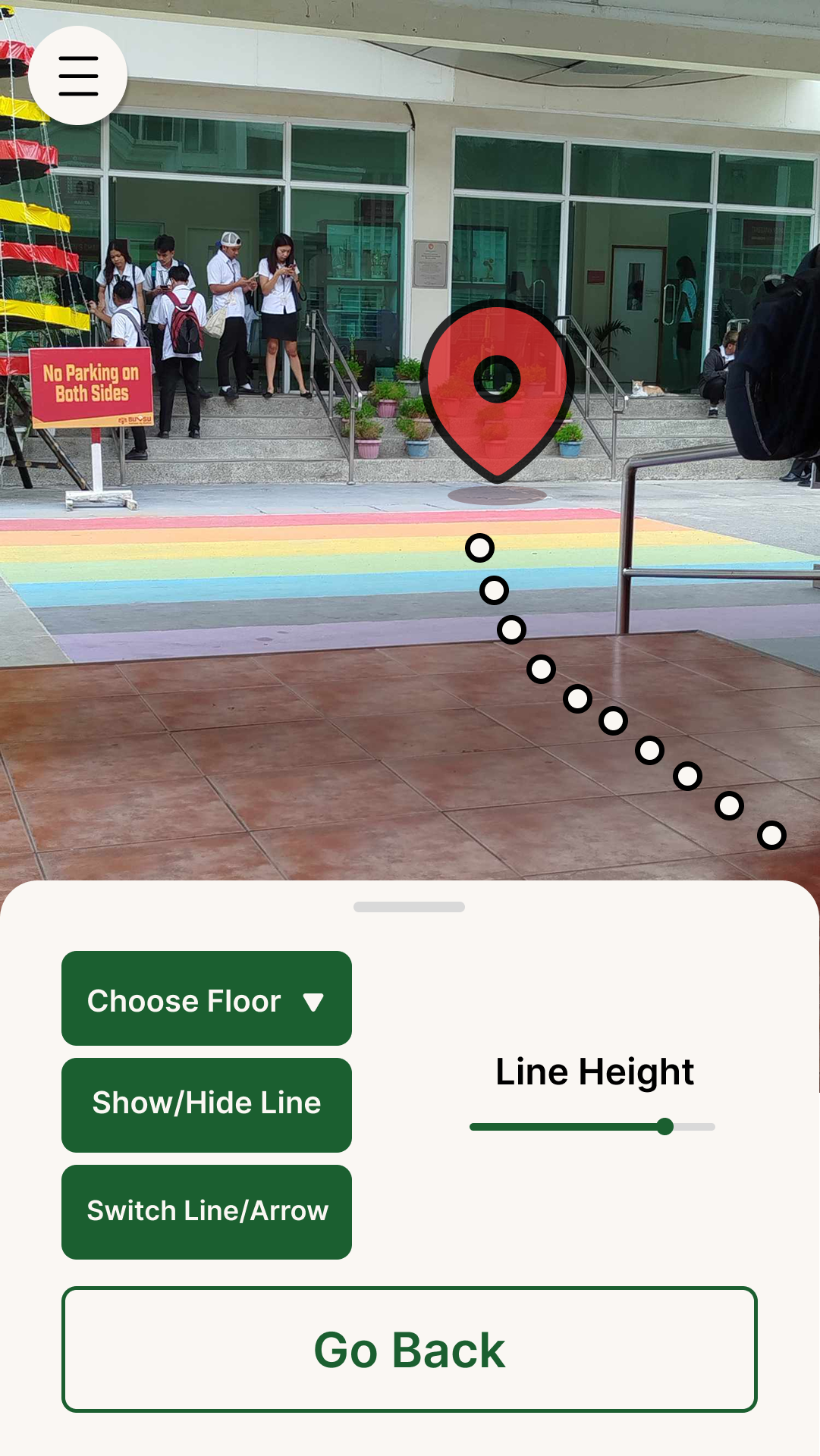
The Advanced Options menu provides several useful features:
- Choose floor (Optional): Adjust the floor you want to go.
- Adjust line height Adjust line height for accuracy and preferences.
- Route indicator: Switch between lines or arrow for preferences.
8Side Menu
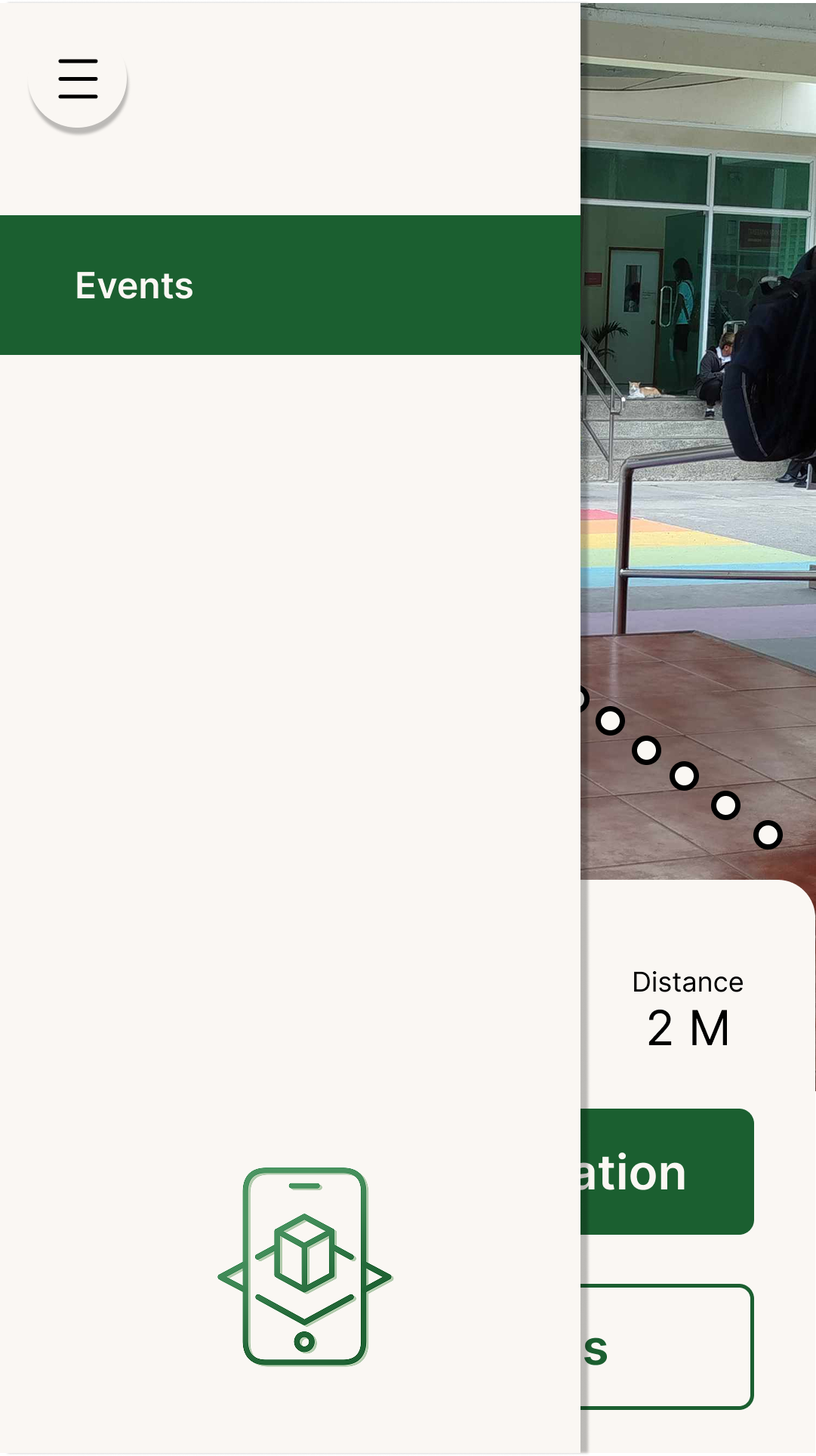
Swipe right from the main screen or tap the menu button to access the side menu. Here you'll find additional options and features to enhance your navigation experience.
9Events
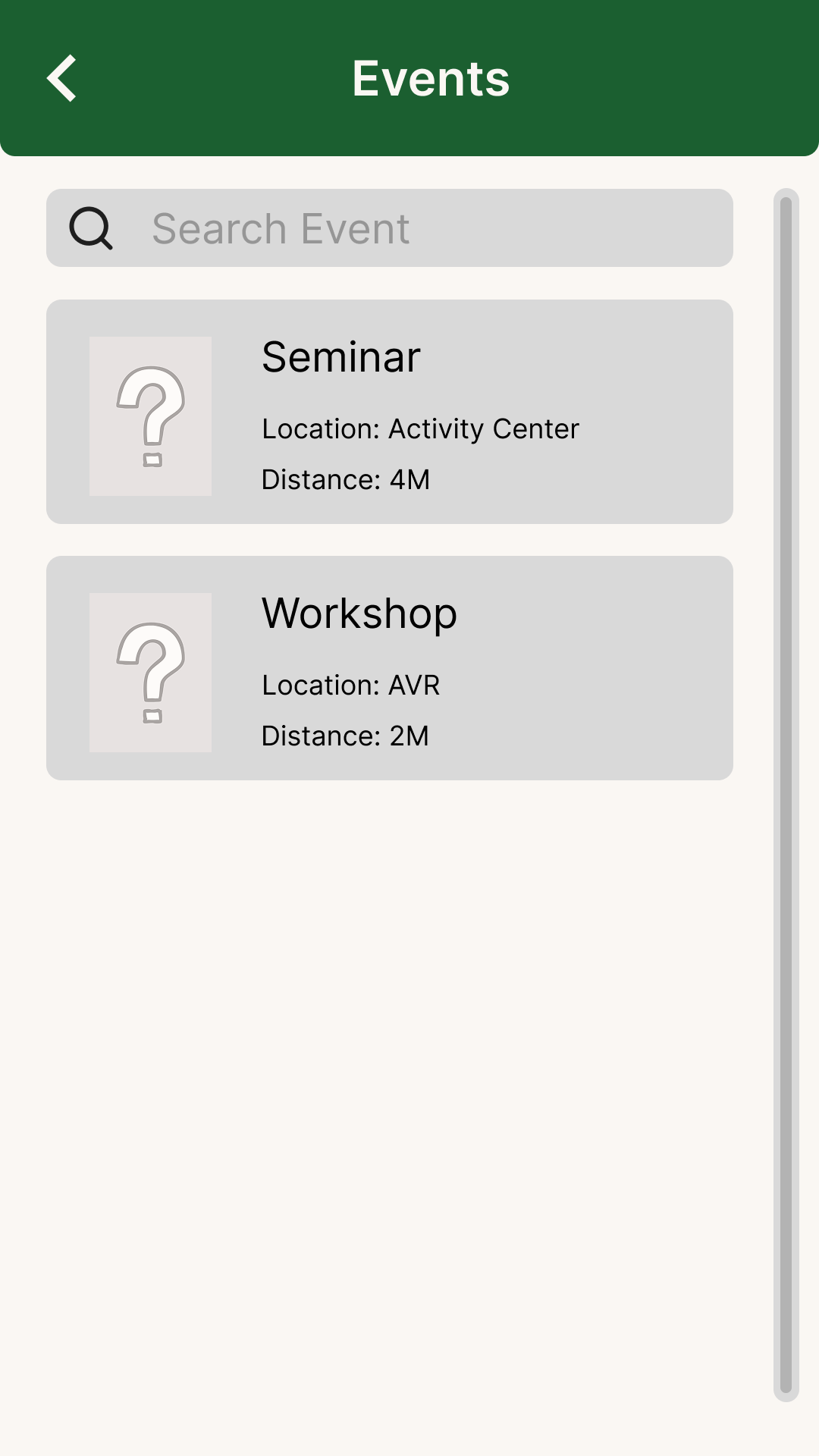
In the Events section, you can view upcoming campus activities and important dates. Stay updated with the latest happenings and plan your schedule accordingly.
10Ready to Navigate!

Congratulations! You've completed the tutorial and are now ready to start navigating the campus. Remember to select your destination, follow the AR indicators, and enjoy finding your way around campus with ease.